In this post let's see how to create a Docker Image of the Spring Boot Application and running it on Docker Container
2. Docker (Version 17.12.0-ce Installed on Fedora 26)
3. Spring Boot (1.5.2.RELEASE)
4. Java 8
5. Maven (Version 3.3.9)
Or you can check out the sample application I have checked into https://github.com/balatamilmani/docker-demo.git (Name: docker-spring-boot)
2. In a Command prompt go to the directory docker-spring-boot and issue the command
$ mvn clean package
You can see a jar file named docker-spring-boot.jar is created under the docker-spring-boot/target directory.
$ sudo systemctl start docker
You can verify if Docker is running by issuing the command
$ sudo systemctl status docker
4. Create a temp Directory in a location of your choice and copy the jar docker-spring-boot.jar (created in Step 2) to that directory
5. Create a file called Dockerfile (with no extension) in the same directory and copy the following content to it
FROM openjdk:8-jre
MAINTAINER Balamurugan Tamilmani
VOLUME /tmp
ADD docker-spring-boot.jar app.jar
RUN sh -c 'touch /app.jar'
ENV JAVA_OPTS=""
ENTRYPOINT [ "sh", "-c", "java $JAVA_OPTS -Djava.security.egd=file:/dev/./urandom -jar /app.jar" ]
You can replace your name as MAINTAINER
6. Issue the following command from the same directory to create the Container Image
$ docker build -t balatamilmani/docker-spring-boot -f Dockerfile .
In the place of balatamilmani substitute your name. This will produce the following output

7. Issue the Docker image list command to see the image is created and stored
$ docker images

$ docker run -it --rm -p 8181:8080 balatamilmani/docker-spring-boot
Tools:
1. STS - Spring Tool Suite (Version 3.9.2)2. Docker (Version 17.12.0-ce Installed on Fedora 26)
3. Spring Boot (1.5.2.RELEASE)
4. Java 8
5. Maven (Version 3.3.9)
Prerequisite:
Docker installation is prerequisite, if you have not installed Docker, get it installed. Also I assume you have setup all the above Tools mentioned.Steps:
Creating Spring Boot jar:
1. Create a Spring Boot Application. You can do this from https://start.spring.ioOr you can check out the sample application I have checked into https://github.com/balatamilmani/docker-demo.git (Name: docker-spring-boot)
2. In a Command prompt go to the directory docker-spring-boot and issue the command
$ mvn clean package
You can see a jar file named docker-spring-boot.jar is created under the docker-spring-boot/target directory.
Creating Docker Image:
3. Make sure the Docker is running in your local, if not start the Docker by issuing the following command$ sudo systemctl start docker
You can verify if Docker is running by issuing the command
$ sudo systemctl status docker
4. Create a temp Directory in a location of your choice and copy the jar docker-spring-boot.jar (created in Step 2) to that directory
5. Create a file called Dockerfile (with no extension) in the same directory and copy the following content to it
FROM openjdk:8-jre
MAINTAINER Balamurugan Tamilmani
VOLUME /tmp
ADD docker-spring-boot.jar app.jar
RUN sh -c 'touch /app.jar'
ENV JAVA_OPTS=""
ENTRYPOINT [ "sh", "-c", "java $JAVA_OPTS -Djava.security.egd=file:/dev/./urandom -jar /app.jar" ]
You can replace your name as MAINTAINER
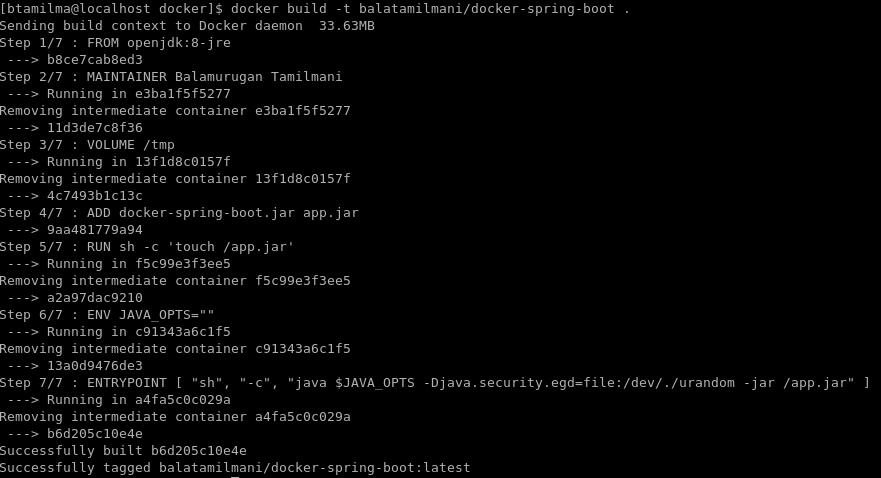
6. Issue the following command from the same directory to create the Container Image
$ docker build -t balatamilmani/docker-spring-boot -f Dockerfile .
In the place of balatamilmani substitute your name. This will produce the following output
7. Issue the Docker image list command to see the image is created and stored
$ docker images

Running the Image in Docker Container:
9. Issue the following command to run the Image in the Docker Container$ docker run -it --rm -p 8181:8080 balatamilmani/docker-spring-boot
Options:it - Interactiverm - Remove the Container on exitp - Bind the container port 8080 to host port 8181
On issuing this command you can see the Spring Boot application startup logs
10. Open a browser window and go to the URL http://localhost:8181
You should be able to see the response from the application as given in the image

11. To start a new Container with the same image issue the same command binding different Host port (e.g. 8282) to the Container port 8080
$ docker run -it --rm -p 8282:8080 balatamilmani/docker-spring-boot
12. Now you can verify the application is running in the URL http://localhost:8282

13. The following command will list the list of running Docker Containers
$ docker ps

14. To stop a Container issue
$ docker stop <CONTAINER ID>
15. To remove the Docker Image from local repository
$ docker image rm b6d205c10e4e
Where <b6d205c10e4e> is IMAGE ID of the Image
